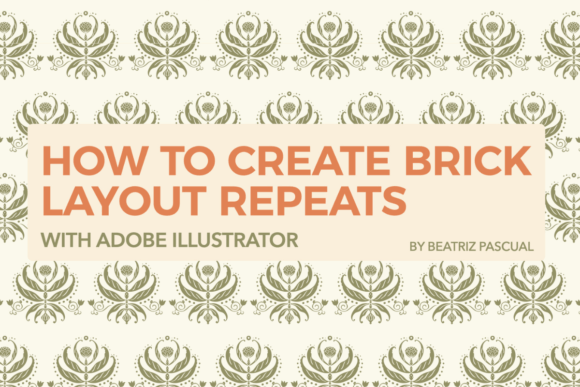
How to Create Brick Layout Repeats with Adobe Illustrator
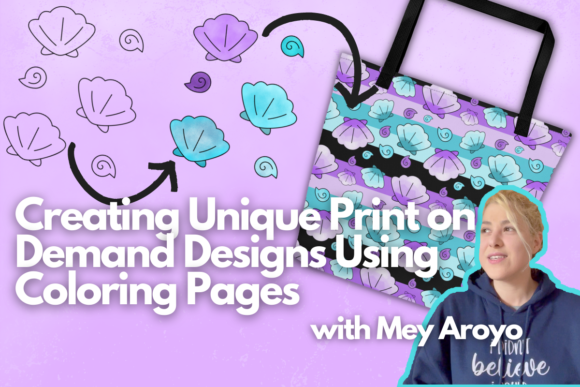
Brick layout repeats are a staple in design, offering a structured yet visually engaging way to arrange elements or motifs. Whether you're working on textiles, wallpaper, or digital graphics, mastering this technique can elevate your work and open up new creative possibilities. In this guide, we'll walk you through the entire process of creating brick layout repeats using Adobe Illustrator, from designing your motif to assembling it into a repeat pattern. This method is especially useful for designers looking to create seamless, scalable patterns that maintain visual consistency across different applications.
Understanding Brick Layouts
A brick layout is characterized by its staggered arrangement, where each row of elements is offset from the one above or below it. This creates a dynamic, interlocking effect that mimics the appearance of bricks in a wall. The key to a successful brick layout is maintaining a consistent spacing between elements while allowing for natural visual flow.
These layouts are not only aesthetically pleasing but also highly functional. They provide a sense of depth and movement, making them ideal for backgrounds, textures, and decorative elements. In industries such as fashion, interior design, and graphic design, brick layouts are frequently used to add texture and interest without overwhelming the viewer.
One of the biggest advantages of using a brick layout is its adaptability. You can apply it to a wide range of motifs—geometric shapes, floral designs, abstract patterns, or even text-based elements. The flexibility of this layout makes it a valuable tool for any designer looking to expand their pattern-making capabilities.
Designing Your Motif
Before diving into the repetition process, it's essential to design a clear and well-defined motif. A strong motif forms the foundation of your brick layout, so take the time to refine its details. Start by sketching your idea on paper or using a digital drawing tool to get a sense of the overall shape and structure.
When creating your motif, consider the size and complexity. Too large or too intricate a motif may not translate well into a repeat pattern. Aim for simplicity, ensuring that your design has enough visual interest without becoming cluttered. Think about how the motif will interact with its neighbors in the layout—will it align seamlessly? Will it create a cohesive whole?
Once you're satisfied with your initial design, import it into Adobe Illustrator. Use vector tools like the Pen Tool or Shape Tools to finalize your motif. It's important to keep your artwork clean and scalable, as vector graphics allow for easy resizing without loss of quality.
Tip: If you're working with complex illustrations, consider simplifying them by reducing the number of colors or layers. This will make the repetition process smoother and more efficient. Additionally, ensure that your motif is centered and aligned properly within the artboard to avoid misalignment during the repeat creation phase.
Setting Up Your Document
Before you begin repeating your motif, set up your document correctly in Adobe Illustrator. Create a new file with a size that suits your intended use. For most pattern applications, an A4 or letter-sized document works well. However, if you're designing for print or web, adjust the dimensions accordingly.
It's also important to define the repeat unit. This is the smallest section of your pattern that contains all the necessary elements to recreate the full design when repeated. Typically, the repeat unit should be a square or rectangle that allows for seamless tiling. To determine the size, consider the width and height of your motif and how much space you want between each element in the layout.
Once your document is set up, duplicate your motif and position it within the repeat unit. Experiment with spacing and alignment to achieve the desired staggered effect. This step is crucial, as it sets the tone for the final pattern and ensures that the layout remains consistent throughout.
Creating the Brick Repeat Pattern
With your motif positioned and the repeat unit defined, it's time to create the actual brick repeat pattern. Start by selecting all the elements within your repeat unit and converting them into a pattern using the Pattern Tool in Adobe Illustrator.
To access the Pattern Tool, go to Window > Pattern. This opens the Pattern Panel, where you can adjust settings such as the pattern name, tile type, and spacing. Choose the Brick tile type, which automatically arranges your elements in a staggered layout. Adjust the horizontal and vertical spacing as needed to fine-tune the alignment and density of your pattern.
As you experiment with different settings, pay attention to how the pattern behaves when tiled. Ensure that there are no visible seams or gaps between repetitions. If you notice any issues, revisit your motif design or adjust the spacing to resolve them. Once you're satisfied with the result, click Make to finalize the pattern.
Tip: When creating a brick repeat, it's helpful to visualize how the pattern will look when expanded. Use the Preview option in the Pattern Panel to see how the layout appears in different sizes and configurations. This can help you identify any inconsistencies or areas for improvement before exporting your final design.
Exporting and Using Your Pattern
Once your brick repeat pattern is complete, it's ready to be exported and used in various projects. Adobe Illustrator offers several export options, including SVG, PNG, and PDF formats. Choose the format that best suits your intended application. For web use, PNG is often preferred due to its high quality and compatibility with most platforms.
Before exporting, double-check that your pattern is properly scaled and aligned. If you're planning to use it in a larger project, consider exporting multiple versions at different resolutions to ensure optimal performance. Additionally, test your pattern in different environments to confirm that it maintains its integrity and visual appeal.
Whether you're creating a textile design, a background for a website, or a decorative element for a product, your brick repeat pattern can be adapted to fit a wide range of uses. By mastering this technique, you'll gain the confidence to explore more complex pattern designs and push the boundaries of your creativity.
Remember, practice is key to refining your skills. Don't be discouraged if your first attempts don't turn out perfectly—each iteration brings you closer to achieving the desired result. With patience and persistence, you'll soon be able to create stunning brick layout repeats that stand out in any design project.